

Product Screenshots to Launch Video Workflow
Turn approved screenshots into a truthful, timed product story with a clean handoff from planning to export.
Open the related free tool →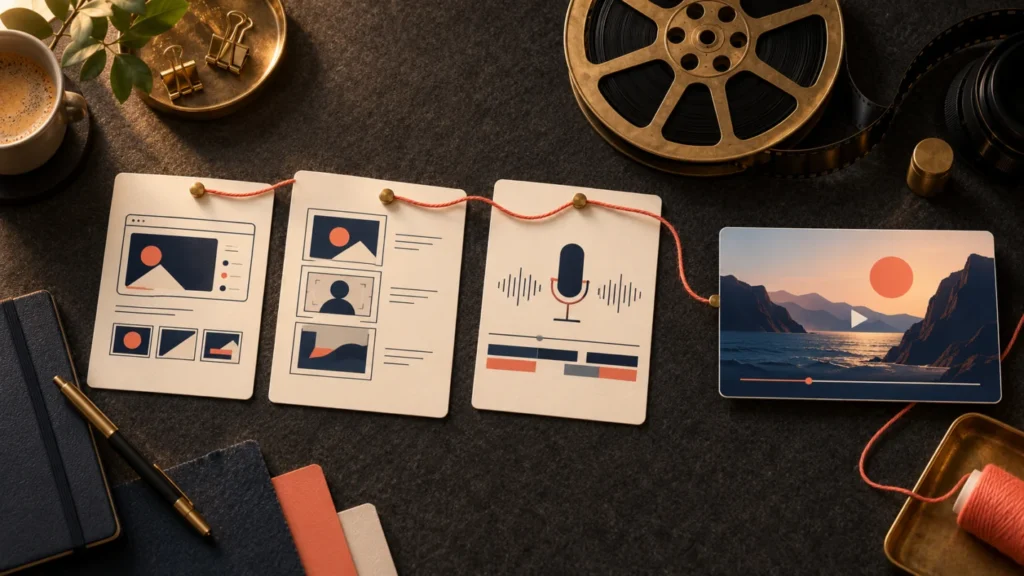
Prepare the inputs
Collect current product screenshots, an approved benefit statement, one call to action, brand assets you may use and any authorized narration or music. Remove customer data and credentials before an asset enters an assistant or hosted generator. Keep the unedited screenshots as evidence of the actual interface.
Output: a short master video, a destination copy and a small project record explaining sources, claims and decisions. This is a production method, not a packaged rendering service. The example plan uses a fictional task-list app and does not claim a finished generated demo.
1. Choose a single product action
Select one change the audience can understand: a task inbox becomes a prioritized daily list. Capture the before state, the real action and the result. Avoid a rapid tour of unrelated screens. Write a sentence explaining what the viewer should learn, then check that the screenshots actually support it.
If the only available asset is a marketing mockup, label it appropriately and obtain real product evidence before making a feature claim. Motion must not conceal a missing or unavailable capability.
2. Build the storyboard
| Beat | Asset | Motion / sound | Approval check |
|---|---|---|---|
| Problem | Original inbox capture | Short readable caption, restrained entry. | No private data; caption matches the problem. |
| Action | Capture of the real interaction | One highlight or exact layer transition. | The action exists in the product. |
| Result | Daily list capture | Stable hold and short narration. | Labels and order remain correct. |
| Next step | Approved title / link | Simple end card, music resolves. | Call to action is truthful and readable. |
Assign durations and file names before rendering. Read the narration aloud while viewing the storyboard. If the voice has to rush, remove a claim or a screen rather than relying on faster cuts.
3. Prepare the motion brief
Use the AI Video Prompt Composer and the product screenshot prompt. State which layers may move and which pixels must stay exact. Keep screenshots, labels, numbers and logos unchanged when they are product evidence.
For generated atmosphere, use a separate scene with a clear illustrative purpose. For exact interface motion, use an editor or a frame-based composition such as Remotion. Review the Remotion planning article and current license terms before choosing a production setup.
4. Render a small sample first
Build one action-and-result segment. Inspect text sharpness, highlight placement and scene timing. An assistant can help write composition code, but the code and rendered frames still need review. Preserve editable layers so a wording change does not require rebuilding every asset.
If the product screen is unreadable at phone size, simplify the crop or create a separate portrait layout. Do not solve that problem by sharpening a tiny full-width screenshot or inventing a cleaner interface.
5. Add narration and sound
- Use an authorized voice and confirm pronunciation, pacing and every product claim.
- Choose music and effects whose rights cover the intended use. Keep a source record.
- Lower background sound under speech and inspect transitions for clipping or abrupt cuts.
- Create readable captions and verify them against the actual audio.
- Listen to the exported file as well as the editing preview.
6. Export and review
Render a master at the intended dimensions and frame rate. Make a smaller destination copy only afterward. The Browser Video Compressor can prepare short MP4/WebM clips locally when its limits fit the project. Download and play the output; record its actual size and duration.
Review the first frame, the action, every transition and the final call to action. Check screenshots, text, sound and factual claims independently. The full product promo guide explains the production choices behind each step.
Handoff sheet
Project / version / reviewer:
Audience and one benefit:
Screenshot files and capture date:
Claim evidence / approvals:
Storyboard and narration version:
Asset rights / voice / music sources:
Master file:
Delivery file / ratio / dimensions / duration / bytes:
Text, product behavior and audio review:
Decision / blocking revisions:
Keep the sheet with the editable project. A reviewer should be able to trace the delivered clip to its approved assets and claims without asking which of several similar exports is final.
Frequently asked questions
Should I generate transitions between all screenshots?
Only when the transition preserves the required evidence. Exact layers are usually easier to control for UI text and numbers.
Can I use a generated interface as a real demo?
Do not present an invented interface as existing product behavior. Clearly separate illustration from actual product evidence.
What should be in the final handoff?
The master, delivery file, editable project and an asset/claim record with any unresolved issues.
Continue with a practical next step
Created by AI Craft Pad. Contact or report an issue. Check the current generator controls and review the output before use.