

Habit Tracker App Store Screenshot Storyboard Prompt
Plan a five-screen app-store visual storyboard for an original habit-tracking mobile app. Copy the prompt, adapt three variations and check the results.
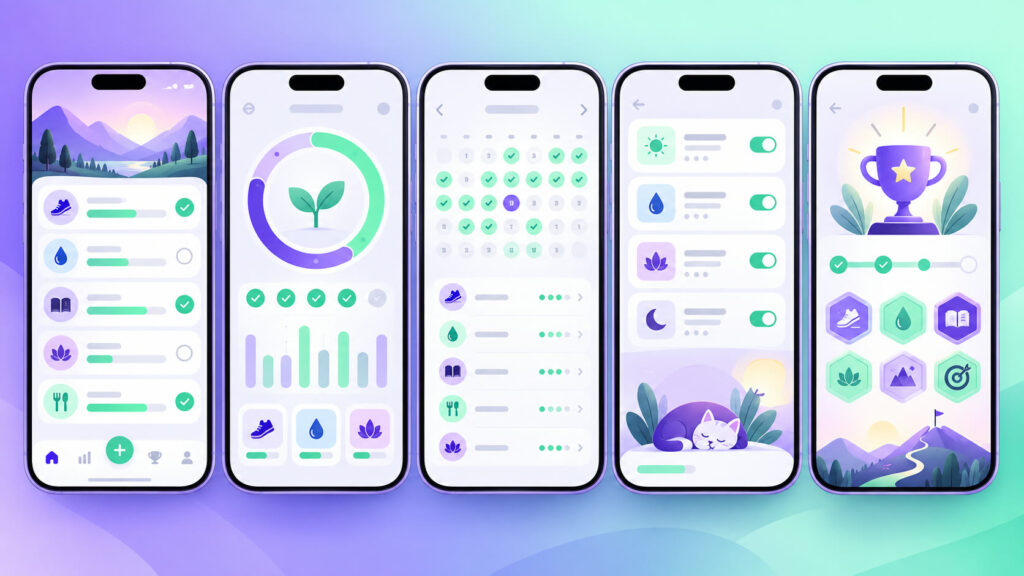
Habit tracker app store screenshot storyboard prompt is a ready-to-adapt brief for a coherent set of commercial or editorial visuals. It starts with the actual deliverable, then controls what must stay consistent across formats. Replace any product or organization details with approved facts before running it. The image below illustrates a possible direction; use it as a reference, not as proof that every generated panel is publication-ready.
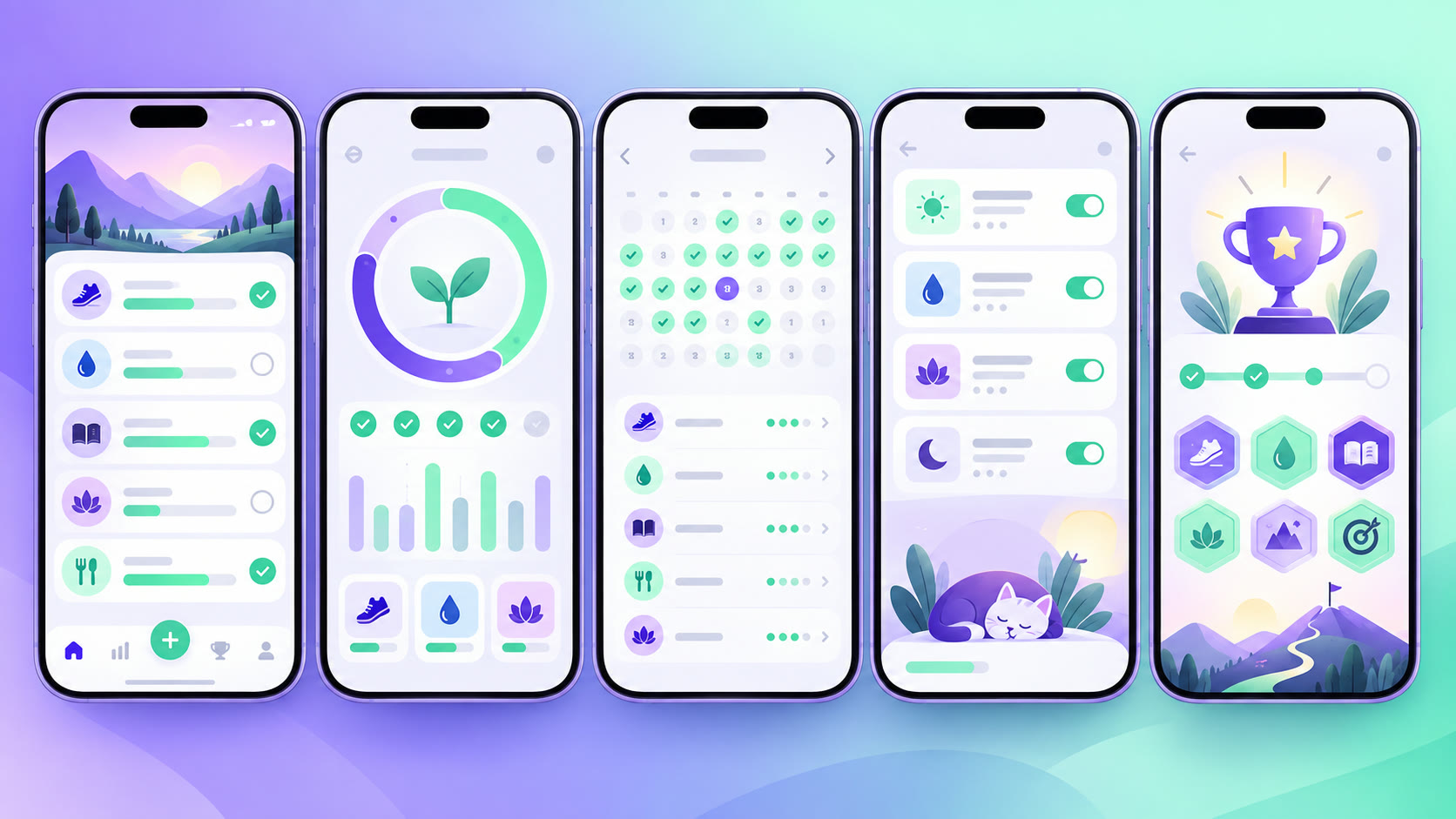
Copy the Habit tracker app store screenshot storyboard prompt
Plan a five-screen app-store visual storyboard for an original habit-tracking mobile app. Screen one introduces the daily dashboard; screen two shows progress over time; screen three shows a monthly habit calendar; screen four shows reminder settings; screen five shows an achievement moment. Keep phone frame, color system, navigation and icon family consistent across all screens, using violet and mint accents. Use abstract placeholder UI instead of generated readable text; add real feature names and accurate screenshots in design software later. Do not invent features, ratings, medical outcomes, privacy claims or platform badges.
Three controlled variations
- Variation 1: Create a calmer accessibility-first version with larger controls and stronger contrast.
- Variation 2: Adapt the sequence for a student routine without changing the core product capabilities.
- Variation 3: Produce a dark-mode sequence that preserves the five-screen narrative.
Prepare the real brief before you generate
Start with one approved reference for the subject and a short description of the audience, channel and decision the visual should support. Write down the number of images, intended crop ratios, minimum useful resolution and the visual elements that must remain identical. For Habit tracker app store screenshot storyboard prompt, consistency is a production requirement: a changing product, space or interface can mislead an audience and make a campaign impossible to assemble. Name the exact object or service you are depicting and decide which features are verified. If the final design needs a price, date, label, metric or claim, reserve a clear space for it rather than asking an image model to invent it. Keep a copy of the source brief beside every generated result.
Choose a primary aspect ratio for the first pass. Generate one sheet or series so you can compare the parts together. If the model merges panels, changes an object between frames or fills a blank copy area with unreadable marks, revise that constraint and rerun the image. Use a fixed seed or reference feature only when the tool offers it; the brief should still explain what makes the set coherent. Review the full-size result before selecting a thumbnail. Small previews can hide distorted details, accidental text and inconsistent lighting. Use the three variations above as separate controlled tests, changing one visual decision at a time.
Production quality checklist
- Identity: Verify that the main subject and required visual system match across every panel.
- Composition: Check safe space for real copy, useful crops and clear focus at mobile size.
- Accuracy: Confirm every screen against the shipped app, especially settings, permissions and claims. Test text-safe areas against actual app-store dimensions.
- Rights: Avoid existing brand marks, unlicensed likenesses and unapproved client material.
- Handoff: Record chosen version, source prompt, crop sizes and any corrections still needed.
How to use the Habit tracker app store screenshot storyboard prompt
Treat this result as a visual direction. Rebuild typography, logos, layouts and final product details in an editable design file. For photographed or represented products, compare the concept against the real item and approved references; regenerate or retouch any inaccurate feature. For interface concepts, replace invented screen content with the actual product and test accessibility and clarity. If people appear, verify consent and context before publication. Export the final deliverable at the dimensions required by the website, store or social platform, and inspect the exported file rather than trusting the generator preview. A strong image is only part of a trustworthy campaign.
Use this prompt in a short review cycle: brief, generate, compare, revise, then approve. Ask a teammate who did not write the prompt to identify what the visual seems to promise. Their reading can reveal unintended claims or mismatched details. An app team can test the narrative order of screenshots before replacing concept screens with real captured UI. Keep the best and rejected examples together so later variants follow the same decisions instead of restarting from scratch. If the result is visually attractive but structurally wrong, fix the structure first; color grading and decorative detail come later.
When placing the final Habit tracker app store screenshot storyboard prompt visual on a website, write an accurate alternative description for its actual purpose. The W3C Images Tutorial explains how to choose useful text alternatives. Check the exported image at its real display size, then add approved copy and metadata in the publishing system.
Related prompts and next steps
Explore more free AI prompts and compare a related creative brief. Adapt the core prompt with your approved inputs, make one test series and apply the checklist before handing anything to a designer or publishing it.