

SaaS Dashboard UI Design Prompt
SaaS dashboard design prompt for original visuals. Copy the full prompt, adapt three variations and check the result before you publish.
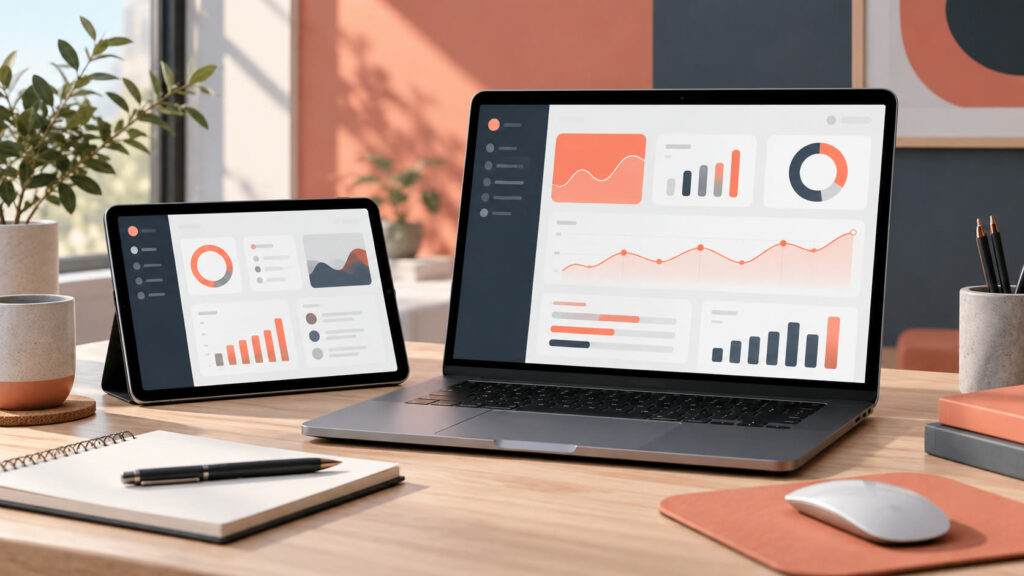
SaaS dashboard design prompt helps you create a specific image with a clear subject, setting and final use. Replace the bracketed variables before you generate. Keep reference material, size and approval rules in the brief so the output is useful beyond a first attractive draft. This free prompt works for personal experiments and for commercial mockups when you have rights to all supplied material.
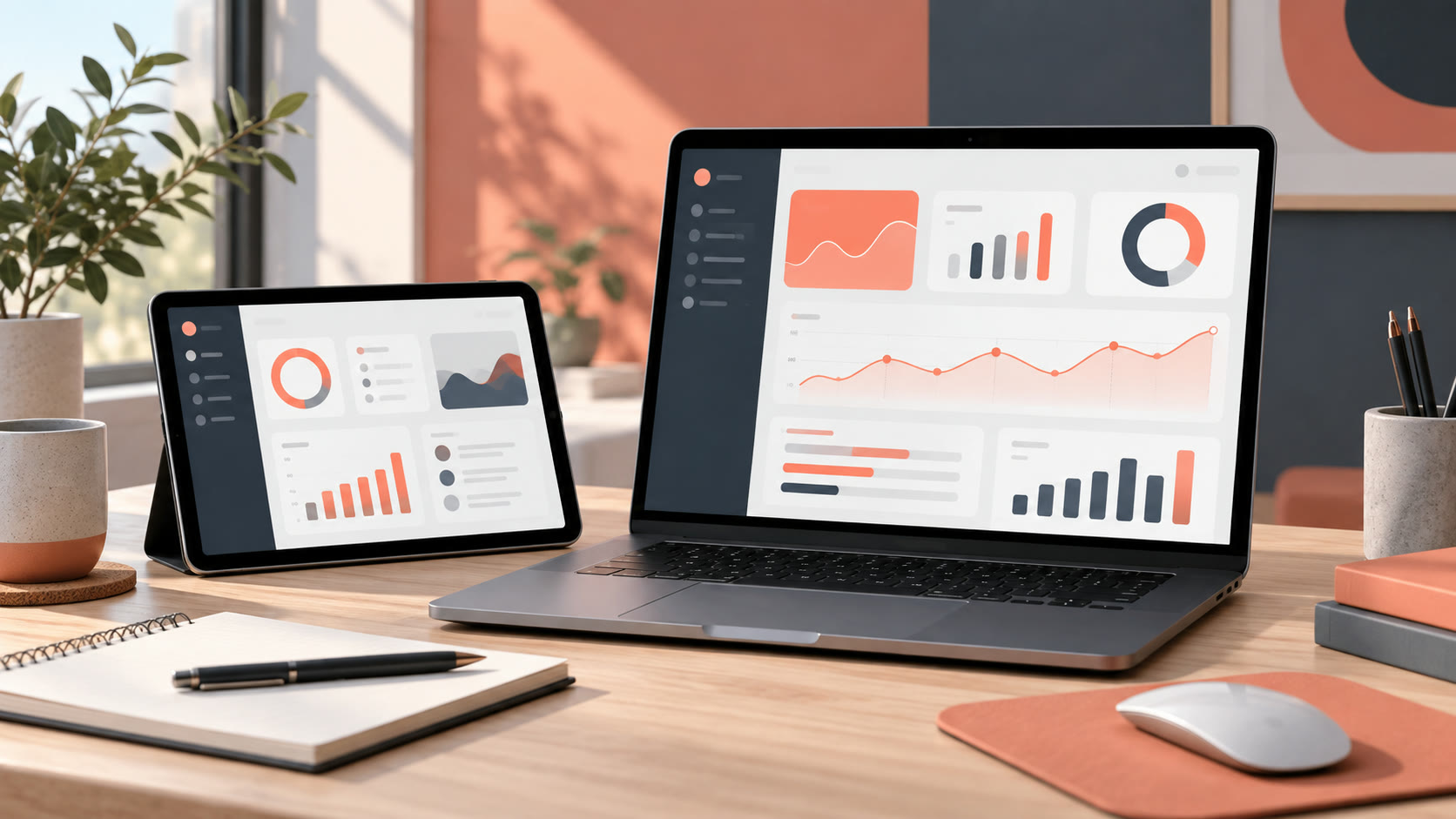
Copy this SaaS dashboard design prompt
Design an original SaaS dashboard for [user role] and [primary task]. Show desktop and tablet layouts in coral, slate and white. Organize current work, one key trend, alerts and a clear next action. Use explicitly sample data, readable labels, accessible chart contrast, focus states and an empty state. Make the layout implementable with common web components. Avoid tiny text, fake live metrics and decorative charts.
Customize the brief
Start with the destination: a website hero, social post, printed card, presentation or product page. Set the crop and safe space before describing style. Supply approved references only when the model must preserve an exact person, product or vehicle. The bracketed fields are instructions, not a request for the image model to invent factual details. If your result will be public, keep logos, dates, prices and claims out of the pixels and add them later as editable design elements.
Three useful variations
- Variation 1. Sales: pipeline changes and follow-ups.
- Variation 2. Operations: exceptions and owners.
- Variation 3. Finance prototype: neutral sample values, no advice.
Generate and refine
Generate one baseline version with the core prompt. Choose a single variable to change for the next version, such as camera angle, lighting or audience. Compare both versions against the same checklist rather than picking the more decorative one. Once the subject and composition are correct, request final aspect ratios separately; do not stretch a small preview to fill a large card. For a commercial campaign, keep an approval record for references and final claims. For personal use, preserve the mood and identity that matter to the recipient.
Quality check before you publish
Validate chart meaning, keyboard use, responsive spacing and real data lengths. Review the first output at full resolution and at small card size. Compare its geometry, subject count, hands, building connections, lettering and materials with the brief. Regenerate a flawed detail rather than fixing it with a misleading caption. Save the final generation settings and mark AI-made imagery clearly when it could be confused with documentary or product evidence. For a web page, add meaningful alt text and inspect mobile cropping; the W3C image guide explains when alt text conveys meaning.
Prepare references and output size
Collect the details that the final image must preserve before running the prompt. For saas dashboard design prompt, identify the intended viewer, one main subject, supporting objects and what must stay out of frame. Select a landscape, square or portrait size for the real placement, then request enough pixel detail for that placement instead of enlarging a small preview. If you use a source photo, state exactly which features should remain faithful and which visual choices can change. Ask for one composition first and review it before requesting variants. For website use, consider how the crop behaves when a card becomes narrow on a phone. Save a clean version without text overlays so your designer can adapt the same concept across channels. This preparation keeps the image tied to the purpose of the prompt rather than drifting into a generic seasonal or scenic picture.
Can I use this prompt for a client?
The prompt can be used as written, but replacing the bracketed fields gives a more reliable result. A generated image is a concept until its details are checked. Keep final text and factual labels editable. Check the terms of your image tool and obtain permission for any reference photos, names or brands. For more context, read our related practical guide or browse the free prompt catalog.