Natural History Museum UI Prompt
Museum exhibit UI prompt: an original AI Craft Pad prompt with a colorful visual example and practical guidance.
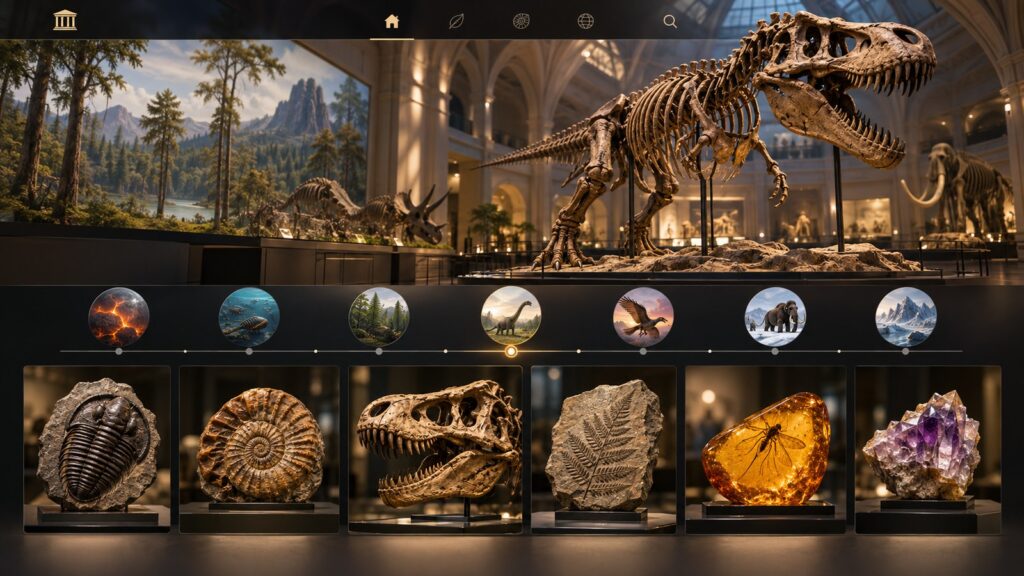
Natural history museum starts with a clear subject, a readable silhouette and a strong visual decision. This original AI Craft Pad example gives you a direction to adapt, then a way to inspect and refine the result.
Museum exhibit UI prompt is a free, copy-ready visual prompt built around one specific scene. The original cover shows a possible direction; the exact result depends on your image model and settings.
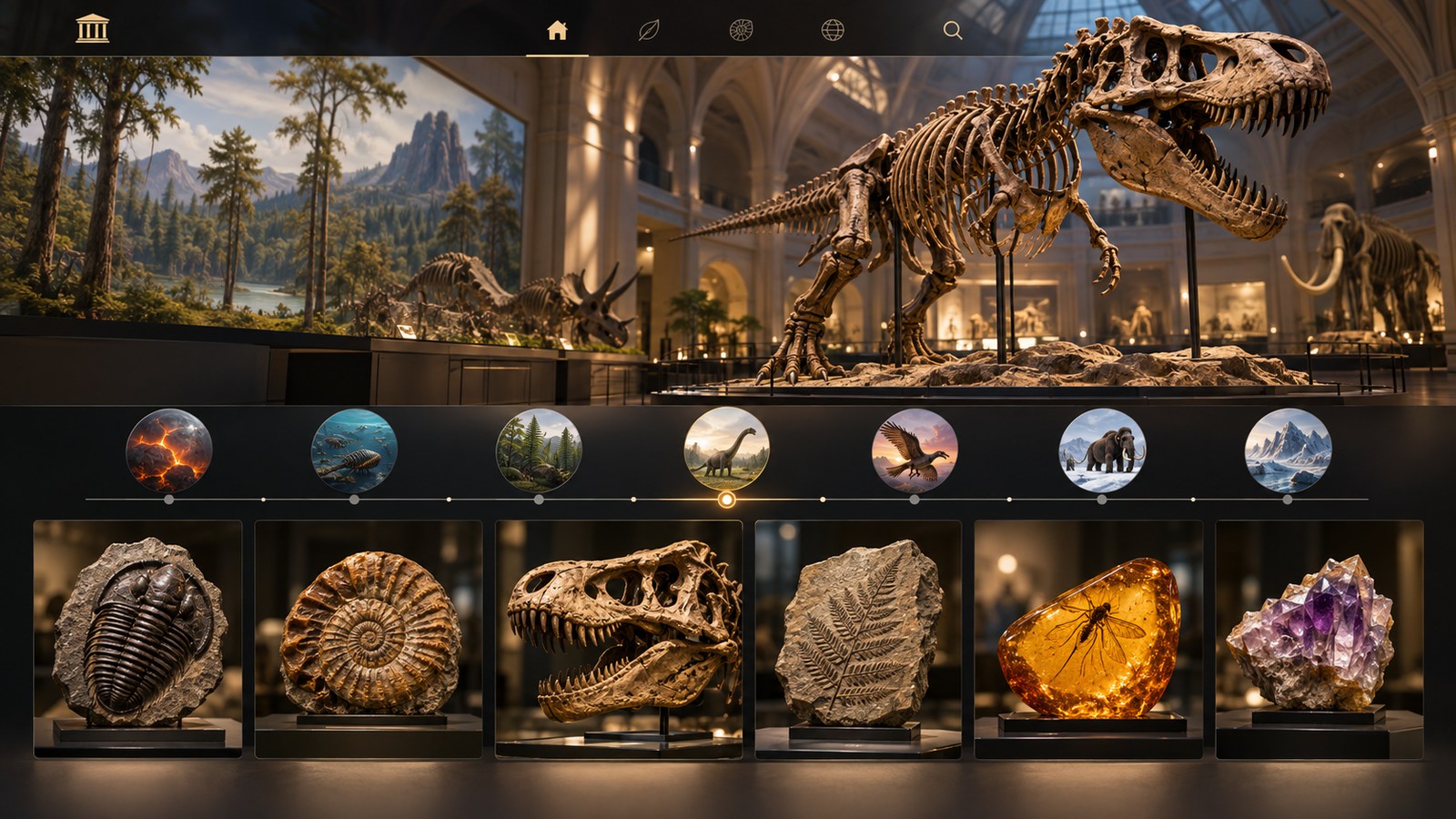
Copy-ready museum exhibit UI prompt
Create one original, polished museum exhibit UI prompt image. The scene is a refined interactive natural history museum website concept with fossil specimen cards, timeline and elegant navigation, realistic desktop interface. Choose one unmistakable focal subject and one supporting action. Give every object a plausible location, shared perspective and a clear relationship to the light source. Use a deliberate foreground, middle distance and background. Keep the important shapes legible when the image is reduced to a small website card. Keep saturated accents near the focal subject and quieter values around it. Preserve visible material qualities such as paper folds, brush marks, ink grain, fabric or glass only where they belong. Leave safe space near the edges so both a wide card and a square crop can preserve the subject. No copyrighted characters, existing movie art, brand marks, watermarks or fake readable copy. Quality gate: Treat the result as a visual concept; verify accessibility and interactions in real code.
Make the first result your own
Change one thing at a time: museum collection, page hierarchy, navigation density, device width. Keep the main visual relationship from the prompt intact, then compare two outputs at the same aspect ratio. This makes it clear whether a camera decision, palette decision or scene detail actually improved the image.
Treat the result as a visual concept; verify accessibility and interactions in real code. The best first draft is usually the one with the clearest subject, not the one with the most decorative details. At card size, viewers should understand the idea without reading a caption.
A useful variation
Create a mobile specimen detail screen with a clear back path. Keep the original prompt beside the variation and note exactly which instruction changed. If the new result loses the central idea, restore the earlier framing before adding more decoration.
Quality checklist
- The subject remains recognizable in a small preview and a square crop.
- Anatomy, folds, perspective and shadows follow one coherent scene.
- Decorative marks do not become accidental words or logos.
- The composition has a clear foreground, middle distance and background.
- Treat the result as a visual concept; verify accessibility and interactions in real code.
Use the output as a concept, then inspect it at full size before publishing or printing. For any real text, data or labels, complete typography in a design editor. If the image includes a scientific or historical claim, check that claim separately.
Browse more original ideas in the AI Craft Pad prompt library. For visual reference and licensing research, visit Wikimedia Commons.
FAQ about museum exhibit UI prompt
Can I change the style?
Yes. Preserve the subject, action and composition first, then change the rendering language. Compare the result against the same quality checklist rather than judging by color alone.
What if the image has distorted details?
Reduce the number of simultaneous objects, move the camera closer and regenerate. Make one repair at a time; repeated unrelated changes make comparison difficult.
How to refine natural history museum
Start with this scene brief: A refined interactive natural history museum website concept with fossil specimen cards, timeline and elegant navigation, realistic desktop interface. Keep the central subject easy to read at thumbnail size. Make one version with the original composition, then create a second version that changes only the camera angle or lighting. Compare how each version guides the eye. Retain the version with clearer depth, consistent materials and fewer distracting details.
For natural history museum, check the image or opening frame at full size and on a phone. Look for unwanted lettering, malformed shapes, drifting identities and repeated objects. If one detail fails, fix that detail before changing the entire scene. Save the best result with its prompt, aspect ratio and generation settings so you can repeat the direction later. If you use outside source material, consult the Creative Commons licensing guide and verify the specific rights yourself.
A final check for Natural History Museum UI Prompt: compare the result with its brief at full size and as a small card. Keep the version with the clearest subject, then record the setting or prompt change that improved it.