ESP32 AI Desk Assistant
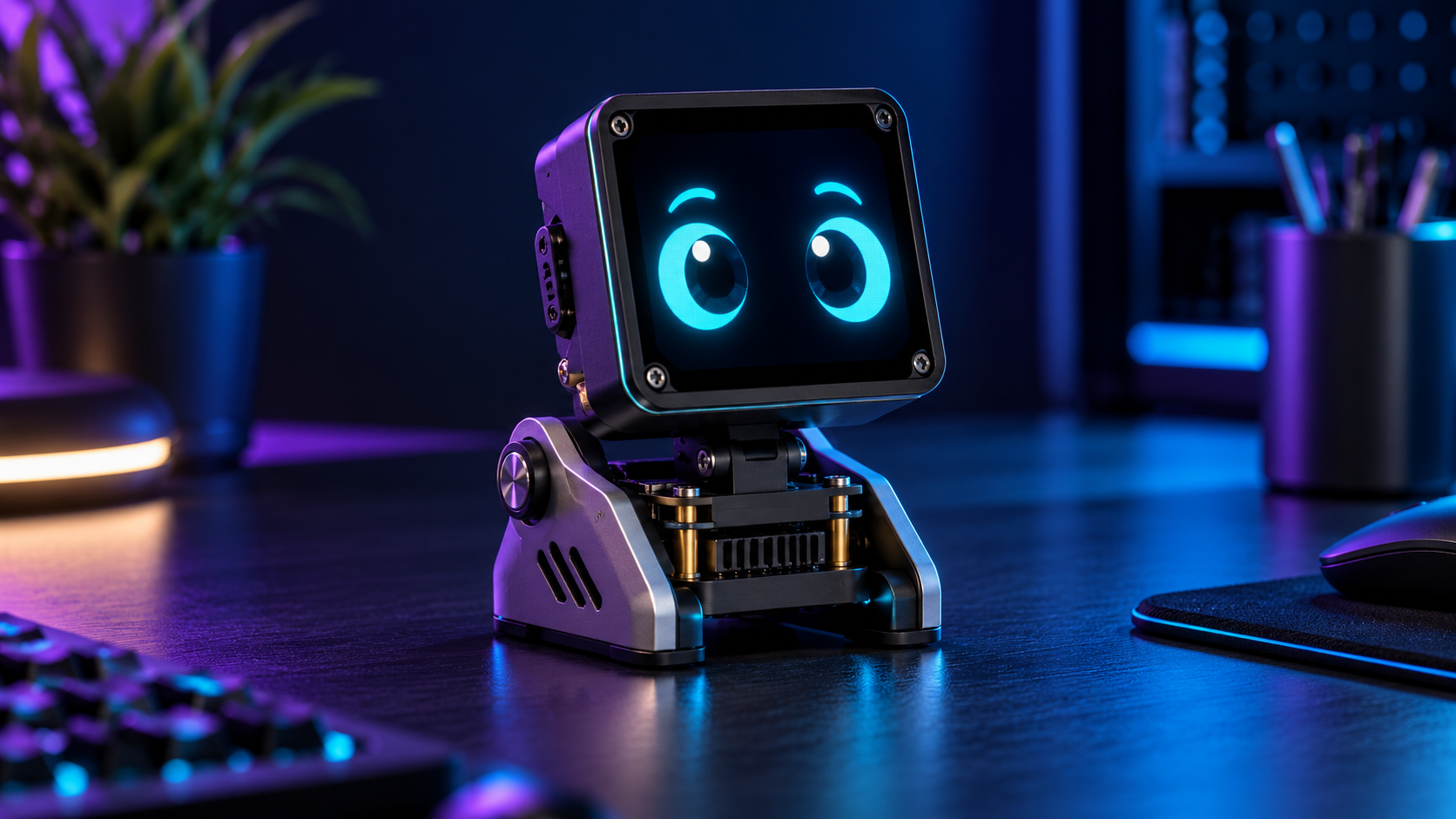
A text-first desk assistant with an animated browser face. The ESP32-S3 hosts the interface while a computer runs the local Ollama model.
Use cases
- Ask a private local model short questions
- Prototype an expressive desk face without cloud credentials
- Learn a device → LAN bridge → local model architecture
Components
- ESP32-S3 development board with USB power and MicroPython v1.25 compatible firmware
- Computer with Ollama and a local model such as gemma3:1b
- Trusted Wi-Fi network and a browser on the same LAN
Architecture / wiring
Browser face/input → ESP32-S3 main.py → LAN bridge.py → Ollama localhost API → bridge → ESP32 → browser answer
Match the exact hardware model stated above. Keep the LAN services on a trusted private network.
Build instructions
- Install Ollama from its official source, run ollama pull gemma3:1b, and confirm the model works locally.
- Run python bridge.py –self-test, then python bridge.py –host COMPUTER-LAN-IP –model gemma3:1b.
- Flash official MicroPython to the ESP32-S3. Copy config.example.py to config.py and set Wi-Fi details and BRIDGE_URL. Keep config.py private.
- Copy main.py and config.py to the board, reset it, read the printed IP in the serial console, and open that IP from a browser.
- Ask a short question. The page reports if the bridge or model is unavailable.
Code, firmware and files
The downloadable source pack contains: main.py firmware, bridge.py computer service, config.example.py template and README.md. Open the folder named esp32-ai-desk-assistant after extracting the ZIP. Start with its README and run the local check below.
python bridge.py --self-test
Validation
The bridge self-test and Python syntax checks passed. End-to-end board and model behavior still needs hardware and a local model.
Run the listed checks on your own setup before relying on hardware results.
ESP32 AI Desk Assistant setup notes
The ESP32 AI Desk Assistant separates its animated face from language generation. The ESP32-S3 serves the browser interface over your local network, while a computer runs the Ollama model and the small bridge included in the free download. This keeps the device responsive even when a reply takes several seconds. It also means the computer must stay on for AI replies; the face can still load without it.
Start with the bridge self-test before connecting the board. Then set the bridge address in the project configuration, connect the ESP32-S3 to the same trusted Wi-Fi network, and open its device address in a browser. If the face appears but replies fail, check the computer firewall, Ollama service, bridge port, and IP address. A small local model is a sensible first choice because memory and response time depend on the computer, not the ESP32.
This free build is text-first. It does not include a microphone, speaker, wake word, or cloud account. Keep the bridge on a trusted LAN and avoid forwarding its port to the public internet. The supplied self-test checks the software path; it is not a substitute for checking your own wiring and board. For board setup and supported pins, consult the official MicroPython ESP32 reference.
FAQ
Is voice included?
No. The free version uses text input and output.
Why a separate computer?
The computer runs the model; the ESP32-S3 serves the face and forwards requests.
Can it be public?
No. The bridge is designed only for a trusted LAN and has no public authentication.
Next step
Build the free edition, then adapt it to your desk. Voice, physical screen support and an enclosure could follow later. These are future plans, not features in this download.