

AI Macro Console
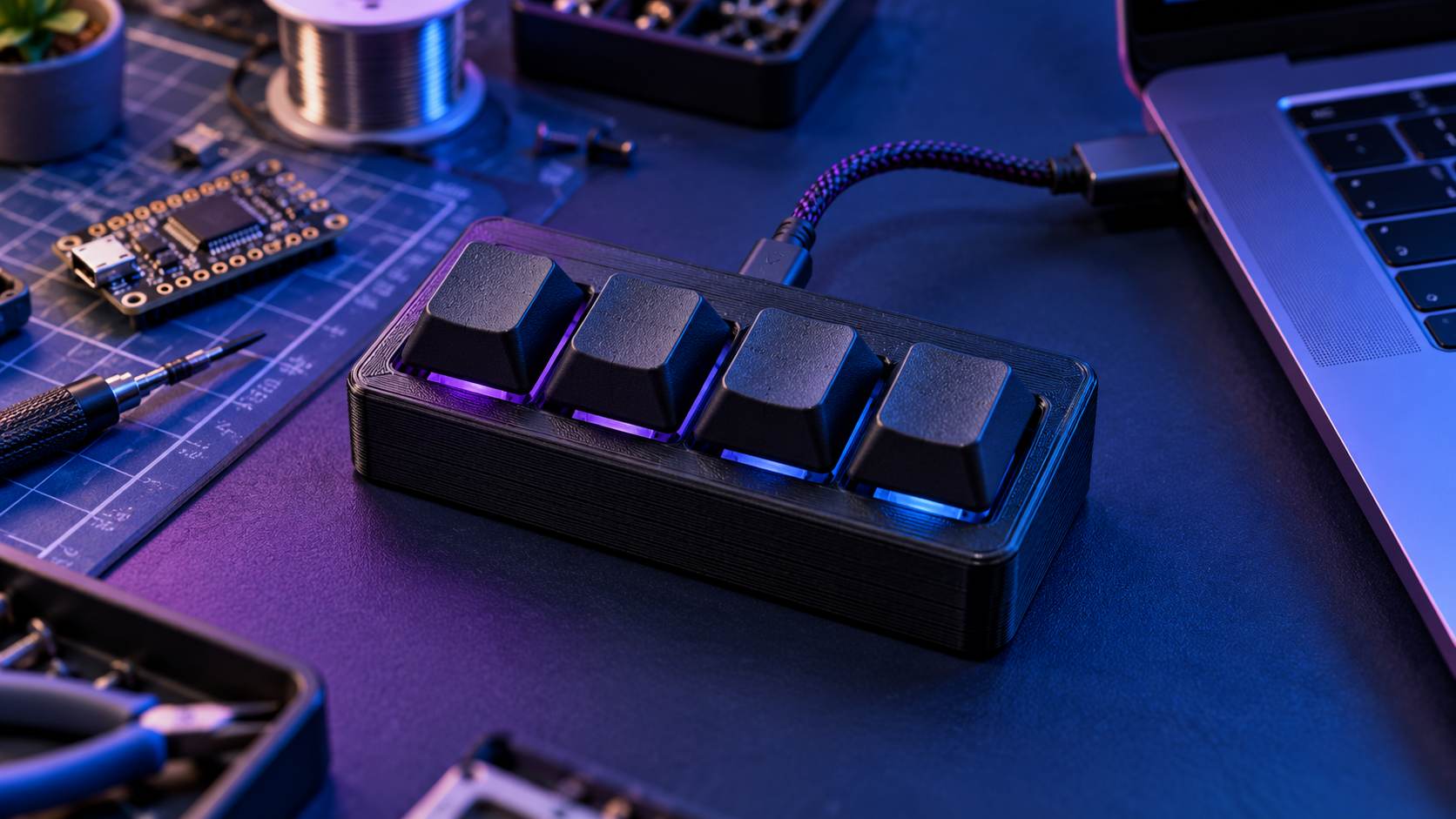
A four-key RP2040 console that sends ordinary keyboard shortcuts for writing and research workflows. Actions remain visible and configurable in the host app.
Concept diagram · verify components before building
Purpose and use cases
Provide tactile shortcuts without hidden scripts, cloud credentials or automatic text submission.
- Trigger a prompt-library shortcut in a chosen app
- Switch between desktop workspaces
- Keep frequent editing actions on labeled physical keys
Bill of materials / components
- Raspberry Pi Pico RP2040 with CircuitPython installed
- Four normally-open momentary switches and four keycaps
- Hook-up wire, insulated enclosure and four labels
- USB data cable and computer
- Adafruit CircuitPython HID library copied to CIRCUITPY/lib from the matching bundle
Architecture / wiring
Switches GP2–GP5 → internal pull-ups in Pico → CircuitPython keypad events → USB HID keyboard → host application shortcut. Each switch's other leg connects to Pico GND; no external voltage is applied to GPIO.
A printable architecture diagram and exact BOM are included in the ZIP.
Step-by-step build
- Flash the official CircuitPython UF2 for Raspberry Pi Pico and confirm the CIRCUITPY drive appears.
- Wire one terminal of each normally-open switch to GP2, GP3, GP4 or GP5; connect the other terminals to GND. Inspect for shorts before USB power.
- Copy the matching adafruit_hid library into CIRCUITPY/lib and copy code.py to the drive.
- Open a blank text editor and press one key at a time. The default F13–F16 codes should be visible to shortcut tools or a keyboard tester.
- Bind F13–F16 inside the intended app to safe, reversible actions. Keep any command that sends data or deletes files behind a separate explicit confirmation in the host app.
- Label the keycaps, close the insulated enclosure and retest all four keys after cable strain relief.
Code, firmware and downloadable files
README.md, code.py, wiring.svg, BOM.csv and keymap.csv
Copy code.py and the matching adafruit_hid library to the CIRCUITPY drive; test F13–F16 in a blank editor.
Setup and configuration
Default firmware emits F13, F14, F15 and F16 only. Edit KEYCODES in code.py to match your shortcut app. For platforms that do not recognize F13–F16, configure the host app first or choose another documented key combination.
Safety and validation
Unverified hardware build. USB HID input can act anywhere the host has focus. Test in an empty editor before binding consequential actions. Disconnect the board before wiring changes; use 3.3 V GPIO only and do not connect switches to mains or external power.
Software checks are documented in the README. A physical assembly and end-to-end hardware run have not been verified by AI Craft Pad.
FAQ
Why do the keys do nothing?
Check CircuitPython, the HID library, switch-to-GND wiring, and whether the host app recognizes F13–F16.
Can a key run an AI prompt?
Yes, through a host app shortcut that you configure. The firmware does not contain an API key or submit prompts.
Can I use another RP2040 board?
Map the four GPIO pins in code.py to the board's pin names and recheck the wiring.
Official references
Next step and possible Pro edition
A possible Pro kit could add a display, profiles and a signed desktop configurator after hardware and cross-platform testing.