

AI USB-C Microphone Station
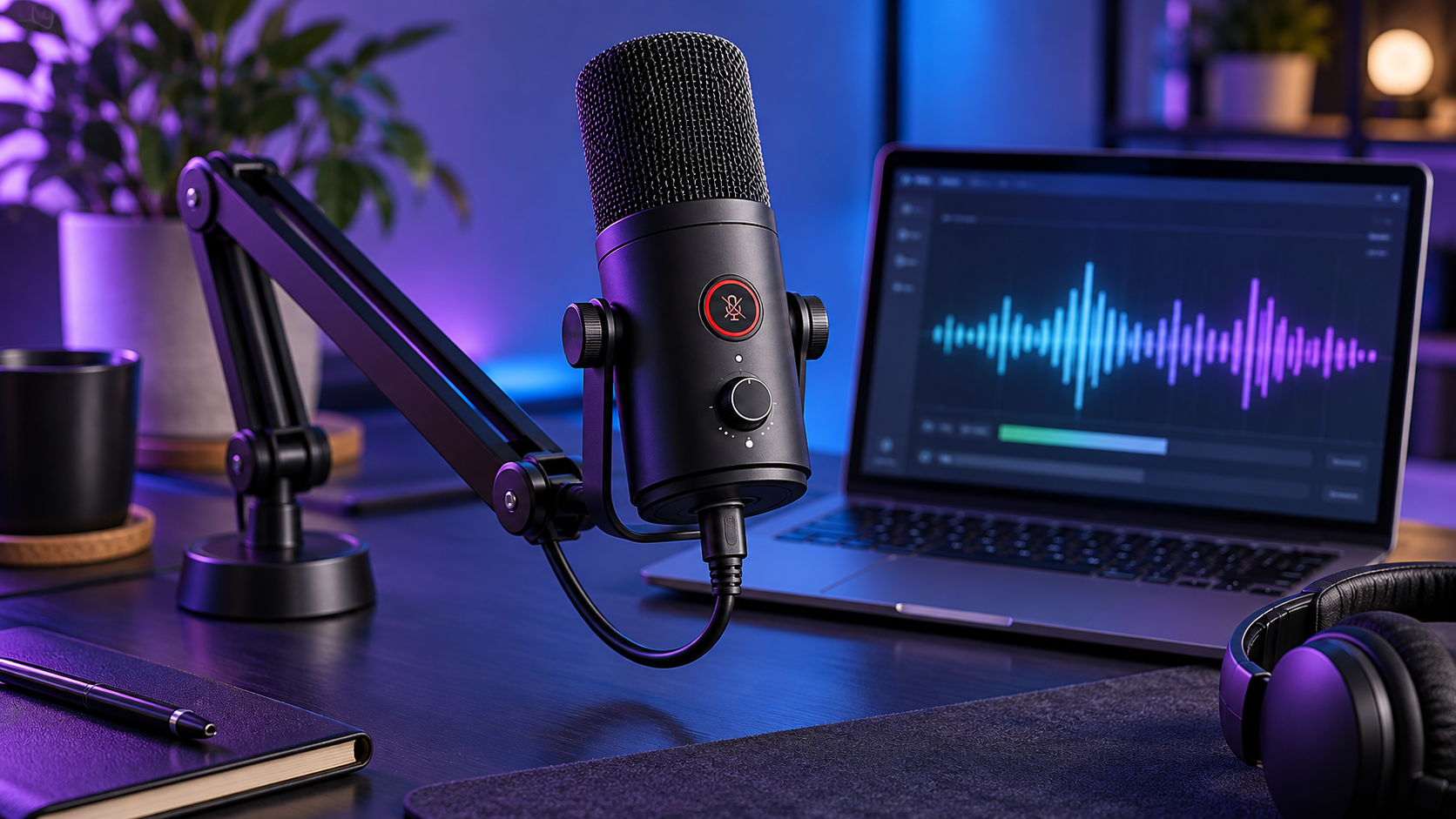
A quiet desk microphone station built from a class-compliant USB microphone, a visible hardware disconnect switch and a local level meter. It gives calls and dictation a predictable input path.
Concept diagram · verify components before building
Purpose and use cases
Make microphone connection state obvious and check input gain before recording or voice work.
- Run a pre-call microphone check
- Disconnect capture hardware when privacy matters
- Keep the mic and cable in a stable desk position
Bill of materials / components
- Class-compliant USB-C microphone with a documented USB Audio Class mode
- Manufacturer-rated USB-C data switch or USB hub with physical per-port power switch compatible with the microphone
- Short certified USB-C data cable and non-slip desk mount
- Laptop or desktop with Python 3 and a supported audio input
- Optional pop filter; no bare audio PCB or soldered USB-C wiring
Architecture / wiring
Voice → USB-C microphone → physical USB data/power switch → host USB audio device → local level_meter.py. Switch OFF disconnects the device; the script only reads input level when ON.
A printable architecture diagram and exact BOM are included in the ZIP.
Step-by-step build
- Check that the microphone is recognized as a USB audio input directly on the host before adding any switch or hub.
- Attach the microphone to a stable stand and route its cable away from mechanical pinch points.
- Add a manufacturer-rated USB data switch or switched hub. Verify it truly disconnects capture by checking that the device disappears from the OS input-device list when OFF.
- Select the correct input device in OS audio settings and disable unneeded application microphone permissions.
- Install sounddevice and run python level_meter.py –list-devices, then choose the device number and run the meter.
- Speak at normal distance, adjust gain in the OS or microphone controls, and confirm peaks stay below clipping. Test the OFF state again in the exact call app.
Code, firmware and downloadable files
README.md, level_meter.py, requirements.txt, BOM.csv and architecture.svg
python level_meter.py --list-devices
python level_meter.py --device 1
Setup and configuration
python -m pip install -r requirements.txt; python level_meter.py –list-devices; python level_meter.py –device DEVICE_NUMBER. The level meter is diagnostic and never records or uploads audio. Your call app may select a different default input, so set it explicitly.
Safety and validation
Unverified hardware build. A software mute icon is not a privacy guarantee. Confirm physical disconnect on your exact microphone, switch, host and application. Use only certified, compatible USB products; never cut or splice a USB-C cable.
Software checks are documented in the README. A physical assembly and end-to-end hardware run have not been verified by AI Craft Pad.
FAQ
Does the switch mute the mic?
Only if the chosen product really disconnects the data path or power for that microphone. Verify device removal in the OS.
Why is the meter silent?
Choose the correct input device, grant OS permission, and check the mic's own gain and switch.
Is noise reduction included?
No. Use your app's reviewed noise suppression setting; this free station provides a clean input path and level check.
Official references
Next step and possible Pro edition
A possible Pro edition could add per-app audio profiles, measured noise tests and a tested enclosure. Those features are not in this pack.