

E-Ink Desk Hub
A quiet, glanceable clock and website status display built with a Raspberry Pi Zero 2 W and a Waveshare 2.13-inch black-and-white V4 HAT.
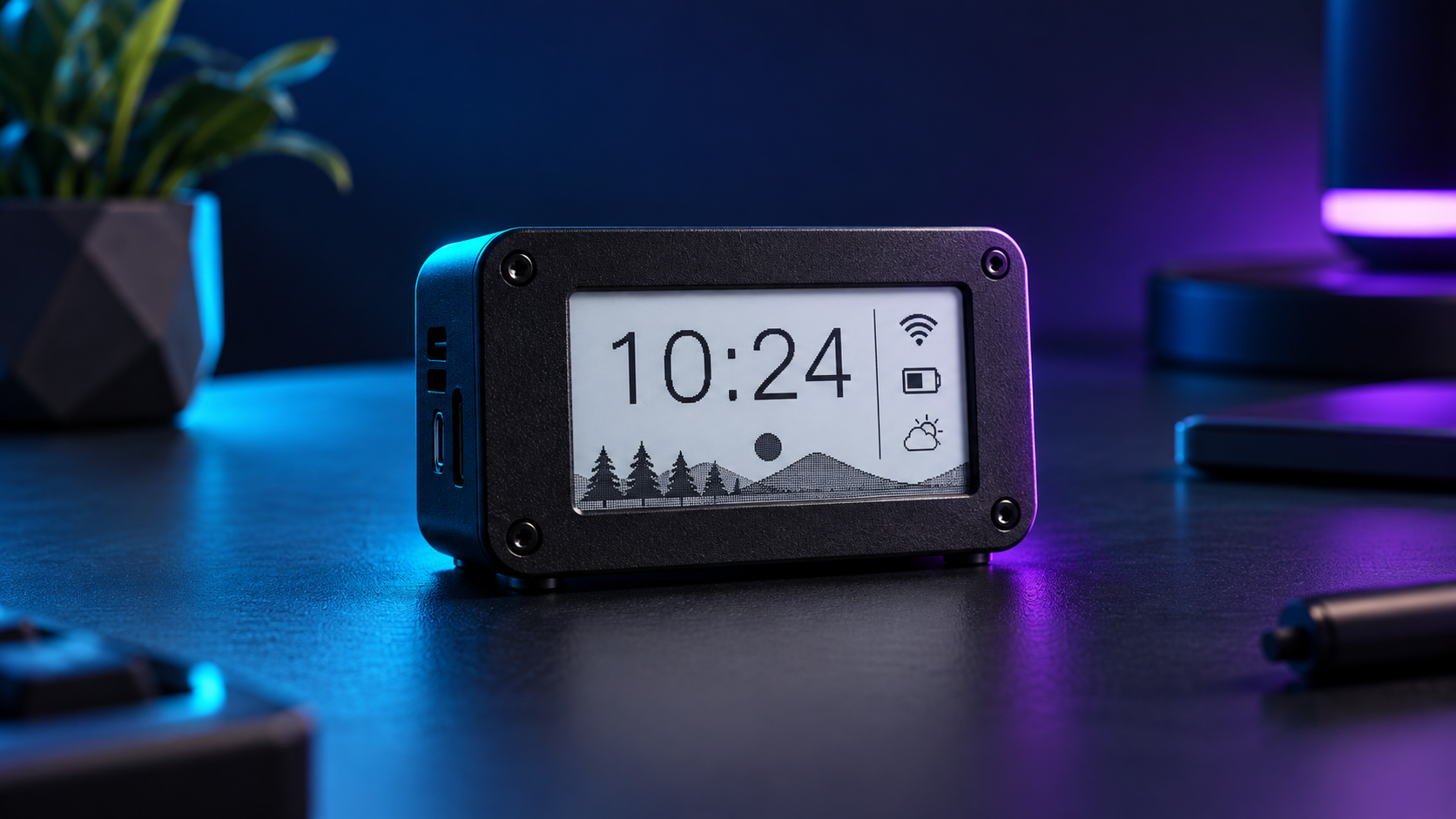
Use cases
- A low-distraction clock at a maker desk
- A status screen for a personal website or home service
- A foundation for a future calendar or task display
Components
- Raspberry Pi Zero 2 W, 8 GB or larger microSD card, and suitable 5 V supply
- Waveshare 2.13-inch black-and-white e-Paper HAT V4 for Raspberry Pi
- Wi-Fi network; the status feed is optional
Architecture / wiring
Website Health Monitor → status.json on the LAN → Raspberry Pi app.py → Pillow image → Waveshare V4 driver → e-paper HAT
Match the exact hardware model stated above. Keep the LAN services on a trusted private network.
Build instructions
- Install Raspberry Pi OS and enable SPI in raspi-config. Verify the exact V4 HAT with the official Waveshare demo before using this app.
- Install Python 3, Pillow from requirements.txt, and the official Waveshare waveshare_epd Python driver that supplies epd2in13_V4.
- Run python3 app.py –demo –output preview.png to confirm the layout without a display.
- Optionally run Website Health Monitor on the LAN and pass its /status.json URL to –feed.
- Run python3 app.py –feed http://LAN-IP:8765/status.json –interval 900. For clock-only use, omit –feed.
Code, firmware and files
The downloadable source pack contains: app.py, requirements.txt, README.md and generated preview.png. Open the folder named e-ink-desk-hub after extracting the ZIP. Start with its README and run the local check below.
python3 app.py --demo --output preview.png
Validation
The PNG demo rendered successfully. A physical HAT refresh remains to be checked on hardware.
Run the listed checks on your own setup before relying on hardware results.
E-Ink Desk Hub setup notes
The E-Ink Desk Hub is best for information that changes slowly: a clock, a short website status summary, and a few labels that you can read at a glance. It uses a Raspberry Pi Zero 2 W to prepare a monochrome image and send it to the named 2.13-inch black-and-white HAT. Check the version label on your display before installing a driver, because similar-sized e-paper boards may use different code.
Start with the included image preview on your computer. It confirms layout and text without depending on a wired display. On the Pi, enable SPI, attach the HAT to the correct pins, install the matching Waveshare driver, and run the project only after the vendor demo renders successfully. The E-Ink Desk Hub can read a local status feed from the Website Health Monitor, but the display should still show a useful clock when that feed is unavailable.
E-paper panels are suited to occasional updates. Refresh at a measured interval and use the driver mode recommended for your exact panel. Keep the source pack and README beside the device so you can repeat the preview and display checks after changing fonts, network settings, or the status URL. A completed software preview does not prove that a particular screen is wired correctly.
For hardware details, use the Waveshare 2.13-inch HAT manual and the official Raspberry Pi documentation.
FAQ
Blank screen?
Check SPI, the V4 model and vendor demo first.
Stale clock?
Correct the Raspberry Pi time and NTP settings.
Will another panel work?
This code targets the black-and-white 2.13-inch V4; another revision needs its own driver and dimensions.
Next step
Build the free edition, then adapt it to your desk. Calendar, tasks and theme settings are possible later extensions. These are future plans, not features in this download.