

How to Turn an AI Website Mockup Into a Testable Prototype
AI website prototype for original website prototype projects. Five adaptable examples with production checks and practical next steps.
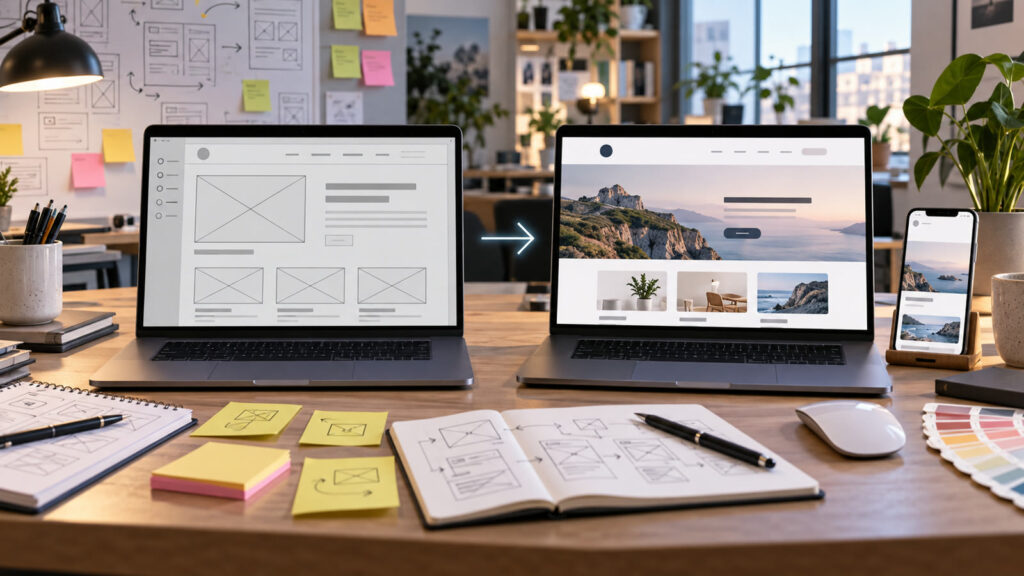
AI website prototype can turn a broad idea into a useful visual brief when the audience, output size, and success criteria are explicit. A visual mockup proves only that one screen looks plausible. A prototype can test navigation, content, forms and responsive behavior. These prompts help teams move from attractive AI output to a sequence of decisions they can validate before development.
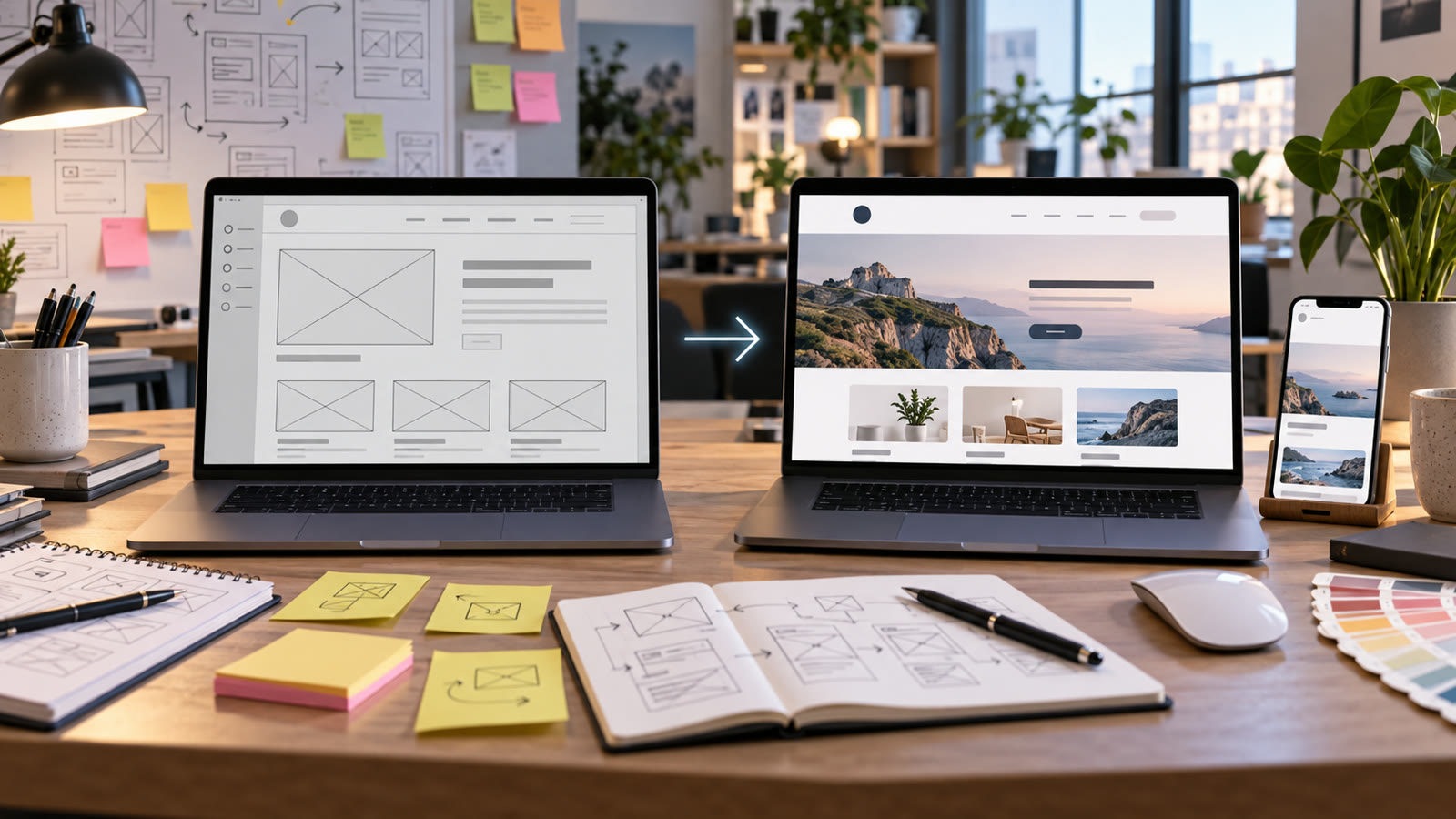
Build a clear website prototype brief
Gather the mockup, page goal, real content and primary user tasks. Describe what a person can click, what happens next and how the page responds when data is missing. Ask for a component inventory, interaction map and mobile layout rather than a second polished screenshot. Keep assumptions labeled.
Before generating, decide where the result will appear. Specify the aspect ratio, how much space should remain for edited text, the intended audience, and any brand or personal details that must stay consistent. Keep typography outside the generated image when exact spelling matters. Save the source prompt and compare several outputs at the final viewing size.
Five AI website prototype to adapt
1. Extract a component inventory
Analyze the supplied website mockup as a design reviewer. List header, navigation, cards, forms, buttons, imagery and footer components. For each, identify purpose, content source, interaction and responsive behavior. Flag decorative elements that resemble controls but do nothing. Return a table of unknowns before proposing implementation.
2. Map the core user journey
Turn a mockup for a small service site into a clickable journey: arrive, understand the offer, view proof, open a service detail, submit an inquiry and receive confirmation. Define every screen and state, including validation errors and a back path. Keep the action labels plain and the number of decisions low.
3. Create mobile states
Adapt the approved desktop website mockup into phone-width screens without simply shrinking it. Reorder content by task priority, specify navigation behavior, touch targets, image crops and sticky controls only where useful. Show long headline and empty-result cases. Use real copy lengths and explain each mobile tradeoff.
4. Write usability test tasks
Draft five neutral tasks for testing the prototype with representative users. Include finding a key fact, comparing options, completing the main form and recovering from an error. Do not lead participants toward the intended button. Provide observation fields for hesitation, success and unmet expectations without declaring a design winner in advance.
5. Implementation handoff
Prepare a developer handoff from the validated prototype: component list, interaction states, responsive rules, content sources, accessibility notes and unresolved questions. Separate what was tested from what is a design assumption. Avoid implying that generated placeholder data is production-ready.
How to refine AI website prototype
Build a low-cost clickable flow first. Run the tasks with a few representative users, record what they actually do and revise the path. Then implement one vertical slice with real content and forms. Preserve feedback and decisions so the final code does not drift back toward the attractive but untested mockup.
For a second pass, change one variable at a time: lighting, camera angle, color range, character gesture, or layout. This makes comparisons meaningful. If the image will support an offer, add the real copy and logo in a layout editor after the visual is approved. Never let a model invent product claims, prices, dates, or customer testimonials.
Quality and publishing checklist
Test keyboard navigation, focus order, labels, error recovery, loading and empty states, as well as desktop and mobile widths. Verify links and forms with real destinations in a staging environment. Check that the prototype’s visual claims match actual content and that consent and privacy details are present where needed.
Inspect the output at the dimensions used on the final page or device. Look for inconsistent anatomy, repeated objects, broken perspective, unreadable small details, and a focal point hidden by the crop. Write descriptive alt text for informative web images; the W3C image tutorial offers a useful decision guide. Explore the prompt catalog and more practical articles for related workflows.
Frequently asked questions
What is the minimum useful prototype?
A connected path through the main task, including its success and error states.
Can AI-generated screens replace usability testing?
No. They can make test material faster to prepare, but actual users reveal where the flow fails.